SSD Buying Guide 2026: SATA vs NVMe SSD for Laptop & PC
SSD buying guide 2026: Replacing a traditional hard drive with a solid-state drive can be one of the most noticeable computer upgrades. But shopping for storage is confusing when listings mix terms like SATA, M.2, NVMe, PCIe 3.0, PCIe 4.0 and PCIe 5.0. These words describe different aspects of a drive, and not every SSD fits every device.
This guide explains the difference between SATA and NVMe SSDs, how to check compatibility and when higher advertised speeds are actually useful.
SSD buying guide 2026: SATA vs NVMe in simple terms
| Feature | SATA SSD | NVMe SSD |
|---|---|---|
| Connection | Usually SATA | PCIe with NVMe protocol |
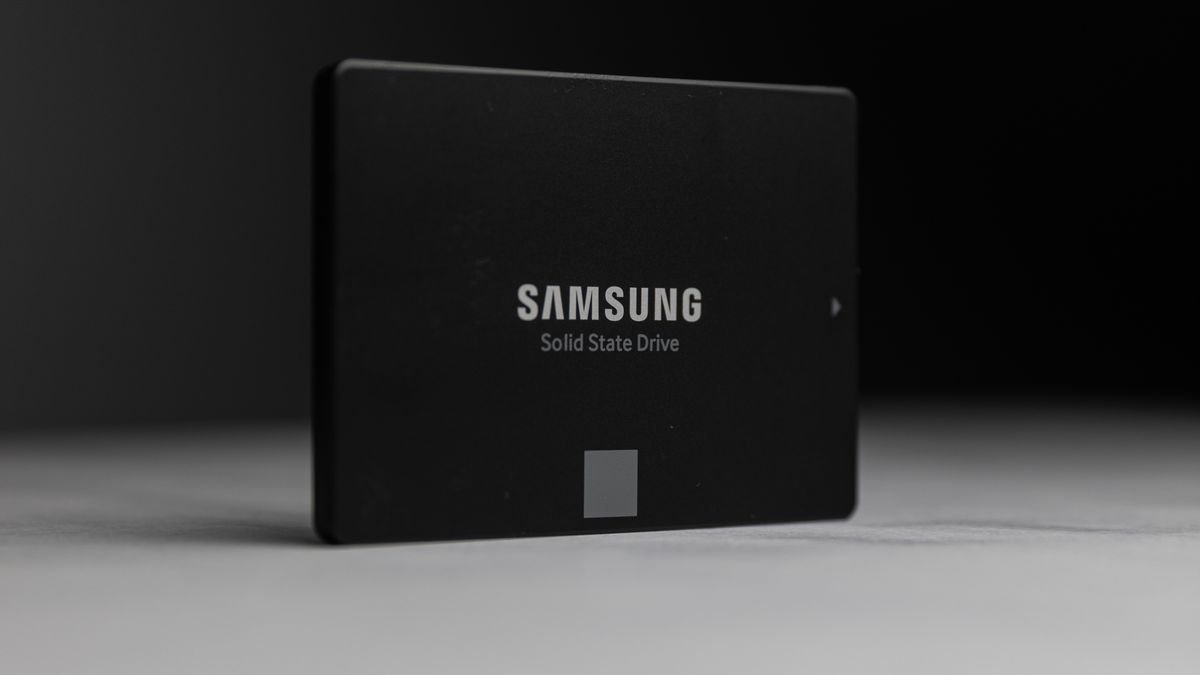
| Typical form | 2.5-inch; some M.2 | Often M.2; other forms exist |
| Peak interface speed | Limited by SATA generation | Can be much higher, depending on PCIe support |
| Common use | Older computer upgrades, everyday storage | Modern laptops, PCs, high-speed workflows |
Manufacturer SanDisk explains that SATA SSDs are useful for everyday programs, while NVMe technology can provide faster transfers and response times for demanding use cases.
1. M.2 does not always mean NVMe
M.2 is a physical form factor, not a guaranteed performance level. An M.2 card can use SATA or PCIe/NVMe depending on the device and drive. A laptop with an M.2 slot may support only certain types and physical lengths. Check the service manual, motherboard specification or exact model documentation before ordering.
Common M.2 sizes are expressed with four digits, such as 2280. The numbers describe the card’s width and length in millimetres; 2280 is approximately 22 mm wide and 80 mm long.
2. What do PCIe Gen 3, Gen 4 and Gen 5 mean?
Newer PCIe generations provide greater potential bandwidth, but real-world drive speed depends on the controller, NAND, cooling, workload and the device’s actual PCIe support. In many everyday tasks, moving from a hard drive to any good SSD produces a larger improvement than moving between two already-fast NVMe drives.
Buying a high-speed SSD for an older machine will not automatically make its interface faster. The drive may operate at the slower supported link speed if the two devices are otherwise compatible.
3. Is 500 GB enough or should you buy 1 TB?
- 250–256 GB: Basic systems and light use, but fills up quickly with games and media.
- 500–512 GB: Balanced for the OS, office files, apps and some photos.
- 1 TB: More flexible for games, creative files and multiple applications.
- 2 TB or more: Useful for large video projects, game libraries and extensive local storage.
Leave some free space and maintain a backup. SSD capacity alone is not a backup strategy.
4. Look beyond advertised read speeds
Very large sequential transfer numbers look impressive, but mixed workloads also depend on random access performance, sustained write behavior and thermal throttling. Compare independent reviews that show results for your kind of workload. If you regularly copy very large files, sustained performance and available cache can matter significantly.
5. What do TBW and warranty tell you?
TBW means terabytes written and is one way manufacturers describe endurance ratings. It is not a promise that a drive will fail at a specific number. Check warranty duration, TBW conditions and any manufacturer-specific exclusions. For important data, always use a separate backup regardless of the drive warranty.
6. How to check laptop and desktop compatibility
- Find your exact laptop or motherboard model number.
- Check whether there is a free SATA bay, M.2 slot or both.
- Confirm supported M.2 length, protocol and PCIe generation.
- For 2.5-inch SATA SSDs, check physical height and required connectors.
- Check whether you need cloning software or a clean OS installation.
- Back up data and follow the manufacturer’s safety and installation instructions.
7. External SSD or internal SSD?
An internal SSD is ideal for operating systems and installed applications. An external SSD is useful for portable files, backups and transferring large projects. For an external drive, the USB port, enclosure, cable and device support can cap real-world speed. Do not assume a fast internal drive will achieve the same speed through every USB connection.
Final SSD buying checklist
Confirm compatible interface, exact form factor and length, required capacity, warranty, endurance rating, sustained performance and seller authenticity. For most users with a compatible modern PC, a reliable NVMe SSD is a strong option; a good SATA SSD remains valuable for older machines. Explore more computer accessories at Shopsemall All Products.
Frequently asked questions
Is NVMe always better than SATA?
NVMe usually has much higher potential bandwidth, but SATA may be the better compatible option for an older device or a cost-conscious everyday upgrade.
Will an M.2 SSD fit any laptop?
No. The physical size, connector, interface and firmware support all matter. Check the exact model’s documentation.
Does SSD speed improve gaming FPS?
An SSD may improve loading and asset streaming in supported games, but it does not directly replace the role of CPU and GPU in frame-rate performance.
Can SSD data be recovered after failure?
Recovery can be difficult or impossible. Keep versioned backups of anything important.
Disclosure: Shopsemall may earn a commission from qualifying affiliate purchases at no additional cost to you. Drive support and prices depend on the exact model. Featured image: Keifer Costa / Pexels.